

General – Working Alone or in Isolation Policy
- What is the purpose of the Working Alone or in Isolation Policy?
- Who does the policy apply to?
- What do I need to do to comply with the Working Alone or in Isolation Policy?
- When do I need to comply with the policy?
- When did the policy come into effect?
- What are the Working Alone or in Isolation Guidelines?
- What is the relevant legislation?
- What are the risks associated with working alone or in isolation?
- What are the policy’s risk categories?
- Do I still need to use the Job Safety Planning (JSP) process?
- Do I still need to speak with my manager about my planned activity and risk?
- What are the key terms in the policy?
- Can I send an SMS to a Landline number so it re-directs to a Duty Officer phone?
- Clicking 1 – Start Activity on my Garmin InReach mini, starts the wrong Activity!
- I need to create an overnight Activity ~ one that runs past midnight into the next day…
Tools to help
- What is JourneyMate and how do I use it to plan and manage risks associated with travelling or working alone or in isolation?
- Are radios available to manage working alone or in isolation risk and scheduled check-ins?
- How do I know if I should be using a radio to support my planning and communications?
- What if I am heading into a known blackspot?
- How often should I be checking-in?
- Are Garmin GPS devices available to manage scheduled check-ins where there are radio blackspots?
- Where can I find information about how to use the Garmin inReach Mini (including test, set up, pre-set messages etc)?
- How do I find the unique IMEI number of my Garmin inReach Mini?
- Does the Garmin inReach Mini support sending pre-set messages?
- How do I activate an SOS call on the Garmin inReach Mini?
- What is the battery life of the Garmin inReach Minis?
- How do I add a website icon to my iPhone Home screen to quickly open JourneyMate?
- How do I add a website icon to my Android phone’s Home screen to quickly open JourneyMate?
General – Working Alone or in Isolation Policy
What is the purpose of the Working Alone or in Isolation Policy?
The Working Alone or In Isolation (WAII) Policy and Guideline are about safety.
The aim of the policy is to ensure the department has accurate location information for staff who undertake work alone or in isolation.
This information supports a timely response in the event the individual requires emergency assistance.
The policy applies to all employees and other workplace participants in the department while they are engaged in their normal duties. This may include:
- fieldworkers
- officers undertaking surveillance activities
- staff who meet with stakeholders and communities including in public places, and
- staff who may occasionally drive long distances between work locations.
It does not apply to emergency response work or visitors.
What do I need to do to comply with the Working Alone or in Isolation Policy?
The policy and devices (e.g. JourneyMate) assist you and your colleagues to be safe.
- As a staff member you will need to consider any activities you undertake away from the office or work centre, including driving.
- Discuss these activities with your supervisor or responsible person to determine the risk
- Call in to your Responsible Person (phone, radio) or use the JourneyMate application to check-in, regularly.
- As a Responsible Person or supervisor you will need to ensure the staff reporting to you have a working in isolation check-in schedule and that you monitor their progress.
- If necessary, you will need to follow up with staff if they miss their check-in times.
When do I need to comply with the policy?
Whenever you or members of your team are planning to undertake work that might involve working alone or in isolation, including travelling (as defined by the policy).
When did the policy come into effect?
Monday 28th March 2022.
What is the Working Alone or in Isolation Guideline?
The guideline supplements the Policy by providing additional information to assist workers to plan and manage activities undertaken when working alone or in isolation.
What is the relevant legislation?
The Working Alone or in Isolation Policy provides a framework to ensure employee safety and compliance with the Occupational Health and Safety Act 2004.
The Act (Section 21) states: An employer must, so far as is reasonably practicable, provide and maintain for employees of the employer a working environment that is safe and without risks to health.
What are the risks associated with working alone or in isolation?
The most significant risk associated with working alone or remotely is sustaining an illness or injury that precludes self-rescue or timely access to medical attention. This may be the result of the individual’s:
- limited capacity to call for emergency assistance; and/or
- reduced likelihood of being found by a responsible person within a reasonable timeframe in the event that they become incapacitated.
What are the policy’s risk categories?
The policy requires that work activities be assessed against six criteria:
- working in remote areas
- working alone or in isolation
- working with stakeholders or the public that may have a heightened risk of confrontation
- task risks (as captured within the SWP’s and SOI’s)
- extended driving (e.g. more than 2 hours)
- movement between working locations.
Based on those assessments, the level of risk is determined to be low, medium or high.
Learn more about calculating risks and the recommended risk controls.
Do I still need to use the Job Safety Planning (JSP) process?
Yes. The JSP is covered under the policy. Fieldworkers should continue to use this process in line with current practises.
Do I still need to speak with my manager about my planned activity and risk?
Yes. It is important that your manager/supervisor is aware of your daily working location.
Always discuss you work and plan with your manager before commencing the activity to ensure appropriate safety measures are considered and implemented.
According to the policy what are the key terms?
The Working Alone or in Isolation Policy includes definitions for key terms and the guideline provides additional information.
Responsible person: The person responsible for ensuring the communications, escalation and check in plans are established and implemented for the staff who undertake work alone or in isolation. This person can be the employee’s direct supervisor or an assigned person in situations where the supervisor is unable to respond. This may also include the activation of a 24/7 call centre.
Working alone: Refers to working anywhere a person is unable to get immediate assistance from colleagues or other people – the potential risk of any existing hazard/s is increased to an extent where extra precautions need to be taken. This may involve working in an isolated area, on or off-site, including local or regular work sites, either during or outside normal working hours.
Working in isolation: An environment where employees and other workplace participants are faced with a situation where they are unable to call or seek emergency assistance when required or in an event where they become incapacitated, unable to gain emergency assistance and unable to be found by a responsible person within a reasonable timeframe.
(Other) Workplace participants: Non-employees including (but not limited to) trainees, university and work experience students, contingent workers, consultants, agency staff, union delegates, apprentices, cadets, visiting scientists and volunteers who perform work for or on behalf of the department.
Rostered Safety Duty Phone holder: The Safety Duty Officer (SDO) supports the Working Alone or In Isolation process if contact is made with them to escalate a missed check-in. This may include contacting Triple 0 and/or liaising with the staff member’s manager/supervisor or director to arrange support as required.
Can I send an SMS to a Landline number so it re-directs to a Duty Officer phone?
No – you cannot send SMS to a landline destination number, with the hope of it being diverted to another number.
(The Twilio REST API will throw a 400 response with error code 21614, the message will not appear in the logs, and the account will not be charged.)
Clicking 1 – Start Activity on my Garmin InReach mini, starts the wrong Activity!
When one Garmin InReach Mini unit is shared by multiple individuals, that unit’s unique IMIE number can be recorded against many Planned Activities.
Clicking 1 – Start Activity sends a signal to the JourneyMate web app ~ but the app has multiple Planned Activities it could “start” ~ so it starts the one with the lowest ActivityID number. This may NOT be “your” Activity!
To avoid this problem and resulting confusion, get anyone with access to the JourneyMate web-based app, to Start your specific Activity for you. Once started, you can safely 2 – Check-in as many times as needed, and 3 – Check-out at that Activity’s end.
I need to create an overnight Activity ~ one that runs past midnight into the next day…
- Enter the required Set times into the Check-in at specific Times box – e.g.

- Mentally note the largest time difference between these set times – in the above example, that’s 4 hours = 240 minutes
- Select the Check-in interval (in minutes)
- Enter a value about 10 minutes greater than the largest time difference – in the above example, that’s (240 + 10 ) = 250 …

- Save your Activity.
Tools to help – FAQs
What is JourneyMate and how do I use it to plan and manage risks associated with travelling or working alone or in isolation?
Visit the JourneyMate page to learn more and access a User Guide.
Are radios available to manage working alone or in isolation risk and scheduled check-ins?
Yes. Staff can use the existing DEECA radios to check-in with their Responsible Person (or another staff member).
That person can then ‘check-in’ on the staff member’s behalf using the JourneyMate app, so it’s formally recorded.
How do I know if I should be using a radio to support my planning and communications?
Allocation of devices will likely need to be prioritised. Users may need to meet the following criteria:
- Working alone or in isolation; in an area with limited communications, accessibility, medical or departmental response, limited or no coverage (radio blackspots).
- Working alone; conducts work without a colleague (excluding driving).
- Working in a public facing role; high risk for confrontation with community members.
- Required to drive / travel to work activities for extended periods of time.
Data from the rollout of Phase 1 (level of demand, reason, usage & applicability) will be used to build a priority model for the full rollout.
What if I am heading into a known blackspot?
If you will be spending a significant amount of time in a blackspot, you may need to have a GPS Satellite device ~ read the Devices > Garmin inReach Mini chapter.
Check the Reported Black Spot Locations.
Also:
How often do I need to be checking-in?
This is a conversation you must have with your Responsible Person before undertaking the activity.
Frequency of check-ins should increase according to the Calculated Risk Rating (Low | Medium | High) and other factors (e.g. weather, location …)
You can agree to check-in:
- at particular times (e.g. at 08:30AM and 5:30PM), or
- with an agreed frequency (e.g. every 90 minutes from activity commencement until completion).
That agreement is stored against the Activity, and JourneyMate will trigger automated reminders (SMS &/or email) to help you.
Checking-in will log your latitude/longitude and grid reference at that time, if you check-in using any GPS-capable device (e.g. a smart phone or a Garmin InReach Mini). Alternatively, anyone with JourneyMate access can check-in for you (and record those details if known).
More frequent check-ins mean a more detailed location history, and where your last known location was.
Are Garmin GPS devices available to manage scheduled check-ins where there are radio blackspots?
If you will be spending a significant amount of time in a blackspot, you may need to have a GPS Satellite device. You can request a Garmin Mini (II) GPS device by contacting the FFMVic Support Team: Service Desk Portal
Select FFMVic Apps Support » FFMVic Application List » JourneyMate (Garmin) » Request a Garmin Mini GPS device
You will need your business unit charge code to complete the form (and details/permission of the financial delegate if that is not you), the ongoing monthly subscription costs will be the responsibility of your business unit, there is no charge for the device itself. The devices are activated on the Garmin Advanced Professional plan, current monthly subscription cost is AUD$55.
Where can I find information about how to use the Garmin inReach Mini (including test, set up, pre-set messages etc)?
User guides for GARMIN GPS device can be found on the Training and Learning Support page and the AU Garmin Support centre https://support.garmin.com/en-AU/
Click here for instructions on how to use the Garmin InReach Mini to send pre-set messages including Starting my activity, Checking-in and (finally) Checking-out.
How do I find the unique IMEI number of my Garmin inReach Mini?
If using the Garmin inReach Mini to start your activity, check-in, and check-out, you must complete the Garmin-InReach GPS device number: field for your Profile and/or Activity.
To find the unique IMEI (device) number of your Garmin InReach Mini:
- start the unit
- from the main menu, select Setup
- select About This Device
or read this: Garmin inReach Mini – Finding the units IMEI Number
Does the Garmin inReach Mini support sending pre-set messages?
Yes. As of May-2022, units are being sent to pilot users which support the sending of pre-set messages including:
- Starting my activity (use once; moves Activity from Status: Planned to Active)
- Checking-in (use as often as required)
- Checking-out (will move Activity to Status: Ended)
How do I activate an SOS call on the Garmin inReach Mini?
Instructions for initiating an SOS rescue can be found in the Garmin Mini Quick Start Guide on the Training and Learning Support page.
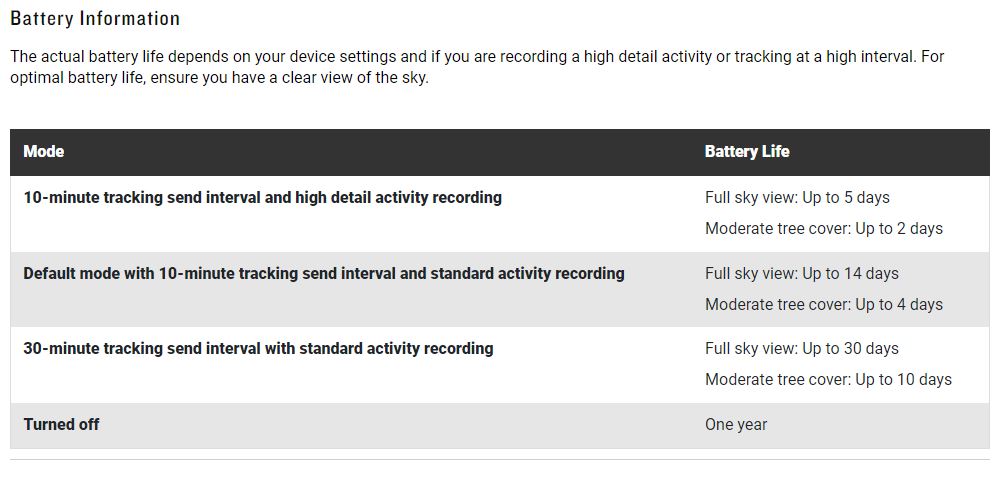
What is the battery life of the Garmin inReach Minis?
“Iridium Satellite Network – Your device requires a clear view of the sky to transmit messages and track points over the Iridium® satellite network. “
Without a clear view of the sky, your device attempts to send the information until it acquires satellite signals.
For the Garmin inReach Mini 2, the battery life page suggests that under tree cover, the battery will be reduced to approximately 30% of the estimation…
How do I add a website icon to my iPhone Home screen to quickly open JourneyMate?
Having used your iPhone to call up the JourneyMate website, tap the  icon then tap Add to Home Screen.
The icon appears only on the device where you add it.
For more details, refer to the Bookmark webpages in Safari on iPhone page, provided by Apple Support.
Thanks to Adam C Melis of Bendigo for suggesting this addition to the Help pages.
How do I add a website icon to my Android phone’s Home screen to quickly open JourneyMate?
- Open the Chrome browser.
- Call up the JourneyMate website.
- Tap the 3 vertical dot options icon in the upper-right corner of the screen.
- Tap Add to Home Screen from the drop-down menu.
- Tap Add on the next prompt.
- Tap Add again in the next prompt.
- Return to your phone’s Home screen.
You will see a shortcut icon for JourneyMate that you added.
Test the shortcut by tapping it – JourneyMate should open.
Thanks to Adam C Melis of Bendigo for suggesting this addition to the Help pages.